3. Find, import and publish products
Step 1 — Search AliExpress
- Open Catalog → Product search.
- Type a Keyword (for example
women summer dress). You can set a Minimum sales, a Minimum rating and the sort order. - Press Search.
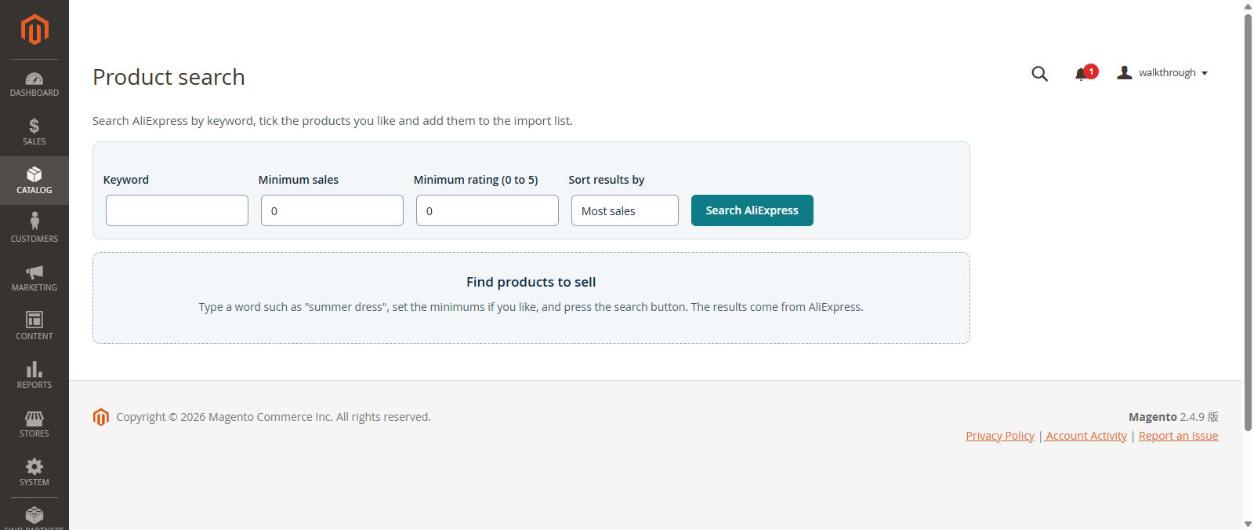
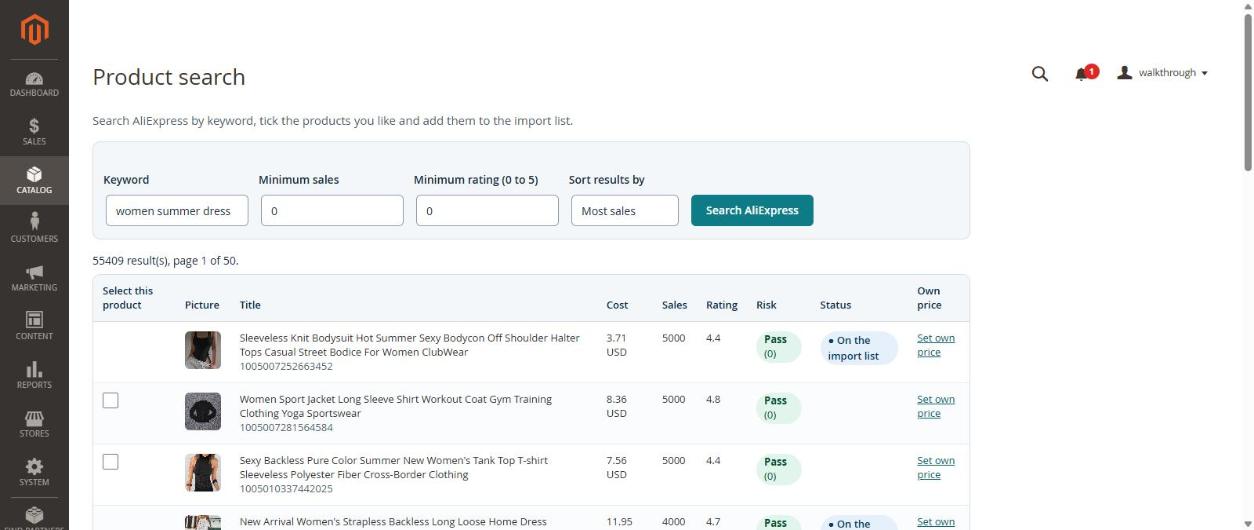
The list shows the picture, title, cost, sales, rating and a Risk badge (Pass means no warning). It also tells you how many results there are and which products are already on your import list.
If you see "AliExpress is limiting requests right now", wait a few minutes and search again. AliExpress limits how fast one app may ask.
Step 2 — Add products to the import list
Tick the products you like and press Add ticked products to the import list.
Step 3 — Set the price and publish
Open Catalog → Import list.
Every plan, the free plan too, has pricing rules: the list shows a Preview price, the Margin and the Rule used, worked out from your pricing rules (article 4). You can always type your own price instead (Set own price); a price below the cost is refused. The price is for the cheapest variant; every other variant gets the same profit on top of its own cost.
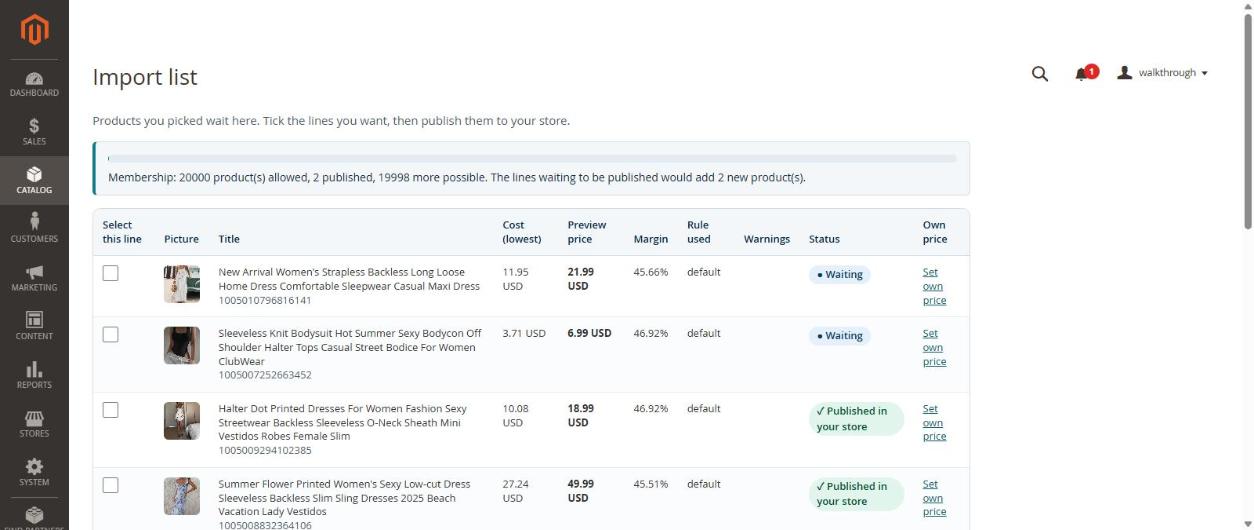
Tick the lines and press Publish ticked lines. The page says how many were published and how many failed.
What the import prepares for you
- Title: the shop title is the AliExpress title without the piled-up search words (Sexy, Y2K, Fashion, New Arrival, Vestidos, Female, the year ...), repeated words kept once, at most 80 characters, written with capital letters. If nothing sensible is left, the AliExpress title is used. The original title is kept in the product's GetDropFlow supplier title field (admin only, never shown in the shop). The picture texts (alt) use the clean title too.
- Description: the AliExpress text is used when it is English text of its own. When it is empty, only the title again, or has Chinese characters, a neutral sentence is written instead (the title, "Choose your colour and size.", and that the shipping cost is shown at the checkout). Nothing about material or size is made up.
- Category: a new product goes into the category its title points to (dress, gown, skirt → Dresses; cardigan, sweater, knit → Knitwear; pants, trousers, set, pajama, top, shorts → Sets & Separates). Change the words and the names in GetDropFlow → Settings → Default values → Categories for new products (one line
Category = word, word; the first matching line wins; use the names of categories you already have, none is created). A product that matches nothing is left without a category and the publish result says so. If you chose fixed categories in the settings, those are used instead. - Products are still created disabled.
Update a product that is already published
A published line stays on the import list. Tick it and press Update ticked published lines: the product is published again, and what is missing is filled in (pictures, variants, prices, stock). Your own changes are never overwritten: the title, the description, the categories and the colour names you edited stay, and the product is not switched on or off. (Before, the line had to be removed and added again.)
Step 4 — Check and enable the product
Published products are disabled on purpose (setting Enable newly imported products = No), so nothing goes live before you have looked at it.
- Open Catalog → Products in Magento and find your product. It is a configurable product with colour and size variants (each variant has its own price and stock).
- Check the title, pictures and prices.
- Switch Enable Product to Yes and save.
The product list has a Storefront column for the products GetDropFlow imported. View in shop opens the product page of your shop in a new tab. While the product is disabled (or if it is a variant, or in no website) the words are grey and a hover text tells you why, because the shop has no page for it yet. Your own products have nothing in this column.
Products appear in the shop search only after Magento's cron has updated its indexes. If a product is enabled but missing in the shop, check that cron is running (article 8).
Next
Article 4: let the plugin price your products for you.