4. Pricing rules
Pricing rules calculate your sale price from the AliExpress cost. They are part of every plan, the free plan too. You can always type your own price for a product instead (article 3).
Where
Catalog → Pricing rules.
How a price is worked out
For every product the most specific rule wins: a product rule over a category rule over the global rule; if two are equally specific, the higher priority wins. The page starts with one global rule named default: cost × 180% (a markup of 80%), the price ends in .99, minimum margin 20%.
The table: one row for every cost range
Open Add a rule (or Edit next to a rule). The Basic pricing rule is a table, one row for each range of the product cost.
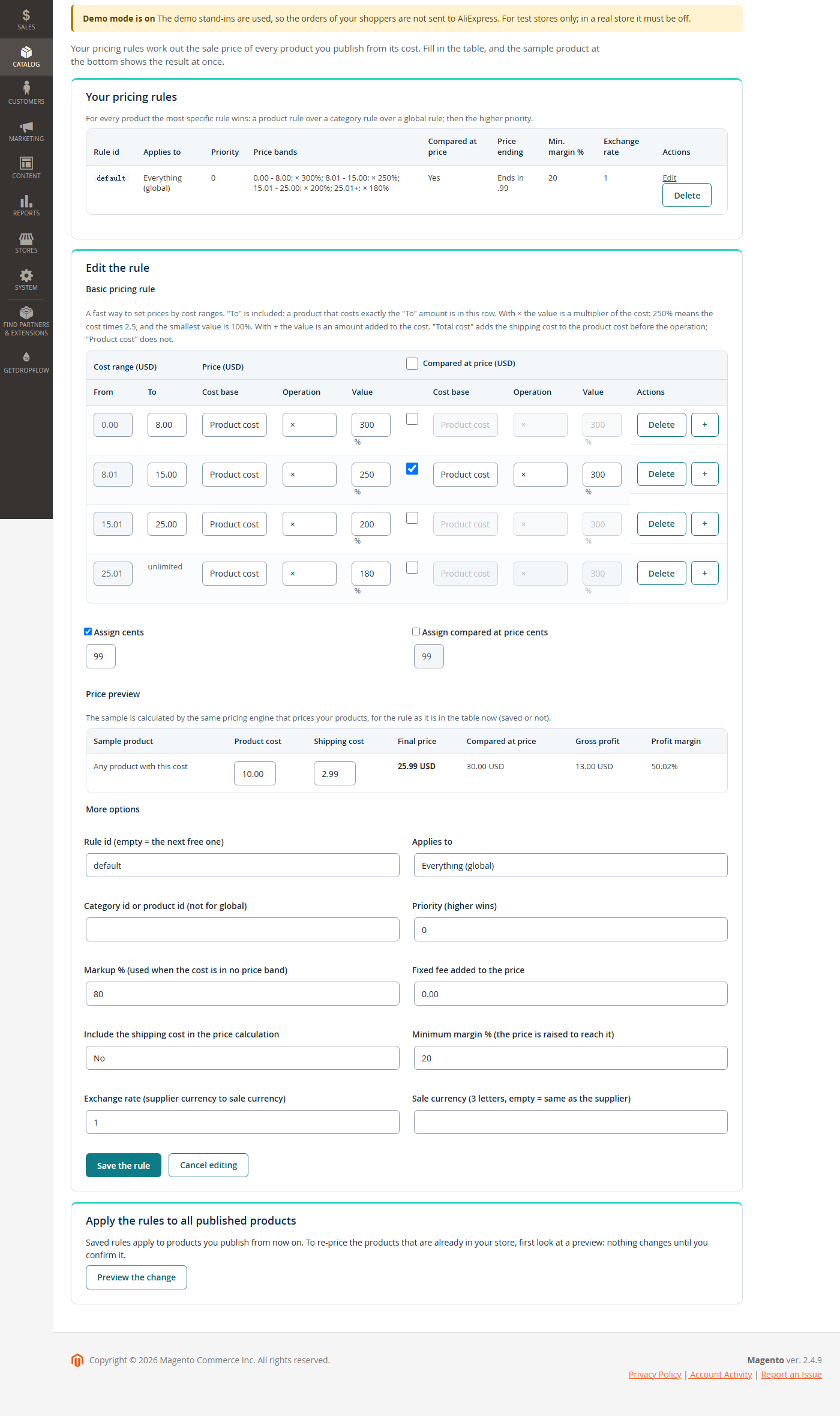
- Cost range — From fills itself in (the first row starts at 0.00; every other row starts one cent above the "To" of the row before). Type the To of each row; "To" is included, so a product that costs exactly 8.00 is in the row that says "To 8.00". The last row is unlimited.
- Price — Cost base — Product cost uses what the product costs. Total cost adds the shipping cost to the product cost first.
- Price — Operation and Value — with × the value is a multiplier of the cost: 250% means the cost times 2.5 (not 3.5), and the smallest value is 100%. With + the value is an amount added to the cost, for example + 5.00.
- Compared at price — tick the box of a row to make a struck-through "regular price" for the products of that row. It has its own cost base, operation and value. The tick box in the header ticks every row. The compared at price is only shown when it is above the final price.
- Delete removes a row; + at the end of the last row adds one (up to 20 rows).
Example: the rows 0.00 to 8.00 × 300%, 8.01 to 15.00 × 250%, 15.01 to 25.00 × 200% and 25.01 and above × 180%. A product that costs 10.00 is in the second row, so it sells for 10.00 × 2.5 = 25.00.
Price endings
Tick Assign cents and type the cents (0 to 99): the price is raised to the next price that ends in them, so 25.00 with 99 becomes 25.99. Assign compared at price cents does the same for the compared at price.
Price preview: try it as you type
Under the table, the Sample product line shows what a product would cost: type a Product cost and a Shipping cost and the Final price, the Compared at price, the Gross profit and the Profit margin change at once. The gross profit is the final price minus the product cost minus the shipping cost, and the profit margin is that profit divided by the final price. It uses the table as it is now, saved or not, and it is calculated by the same engine that prices your products. For 10.00 and 2.99 with the example above you get 25.00, a gross profit of 12.01 and a margin of 48.04%.
More options
Open More options for the rest: the Rule id (leave it empty and the next free one, rule-1, rule-2 and so on, is used; an id that already exists is refused, use Edit next to that rule instead), Applies to (everything, one category or one product), Priority, the Minimum margin % (the price is raised until it is reached), the Exchange rate and the Sale currency. The markup and the fixed fee in this part are only used for a cost that is in no row, which cannot happen when the table starts at 0.00 and ends with "unlimited".
Press Save the rule.
The compared at price in your shop
When a row has a compared at price, the shop shows it struck through next to the final price (in Magento the compared at price is the regular price and the final price is the special price). When the cost of a product changes, the next price and stock sync moves the compared at price with it. If you remove it from the rule, the sync removes the strike-through from the products.
Good to know
- Rules made before this table existed open in it as well: a rule without bands is one "unlimited" row. A band that has both a markup and a fixed fee is shown as "older rule" and kept as it is. If the old bands leave a gap, the page tells you before you save.
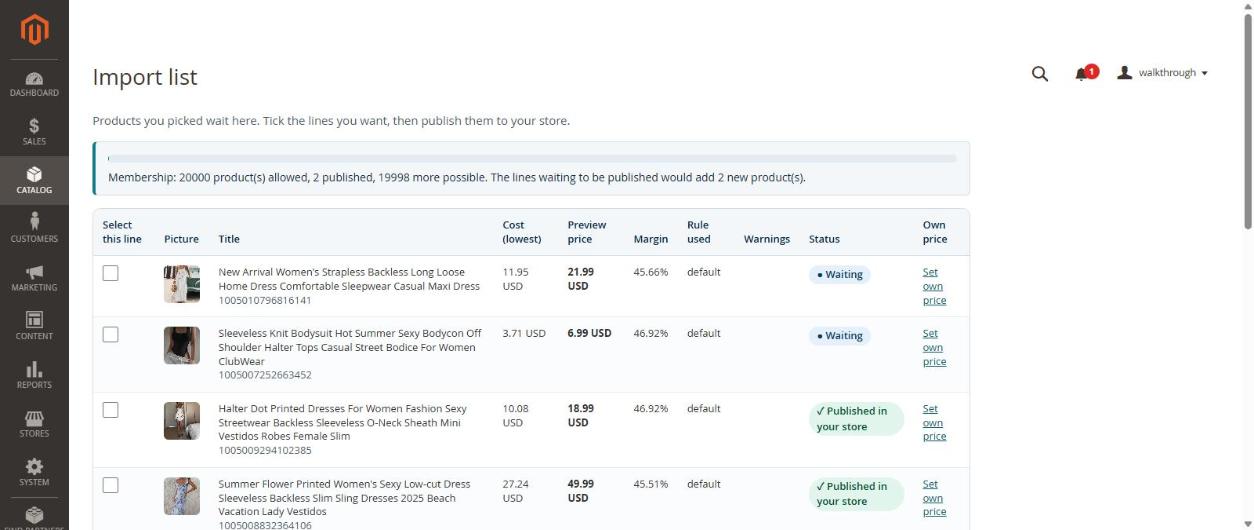
- The import list shows a preview price from the cheapest supplier price; the real price is worked out for each variant with the real shipping cost when you publish.
- Your own price typed on the import list always wins over the rules.